
Google Voice can work as a simple voip google setup, but only if you choose the right path. If you want easy internet calling with Google, the fastest options are the mobile app, browser calling, call forwarding, or a supported adapter for a regular phone. In this guide, mình will show bạn what works, what does not, which devices are compatible, how number porting works, and the common mistakes to avoid.
Key Takeaways
- Google Voice is a practical VoIP-style tool, but it is not a full replacement for traditional phone service.
- The easiest setup for most people is the mobile app or browser calling.
- You can use a regular desk phone or home phone only with supported hardware.
- Not every VoIP phone works directly with Google Voice.
- Older or discontinued adapters can be risky to buy used.
- Porting a VoIP number into personal Google Voice usually requires a mobile carrier step first.
- Google Voice should not be treated as your only emergency-calling option.
- Personal Google Voice and Google Workspace Google Voice are not the same setup.
- Wired Ethernet is usually more stable than Wi-Fi for adapter-based setups.
- Before buying hardware or moving your main number, verify compatibility and porting eligibility first.
What Google Voice Means for VoIP Users
What Google Voice is in simple terms
Google Voice is a virtual phone number service. It gives you a number for calling, texting, voicemail, and call forwarding without needing a traditional landline.
For many people searching voip google, the real goal is simple: they want a cheap, flexible phone setup that works across devices. Google Voice fits that use case well.
Main features include:
- Calling from the app or web.
- Texting from supported devices.
- Voicemail with transcription.
- Call forwarding to linked phones.
Is Google Voice a VoIP service or a phone carrier?
Google Voice uses internet-based calling, but it is not the same as a traditional carrier. It behaves more like a lightweight communication layer than a full phone company.
In practice, that means:
- You can place and receive calls over the internet.
- You can route calls to other linked numbers.
- You still need to understand its limits before relying on it as your only phone service.
How internet calling with Google works
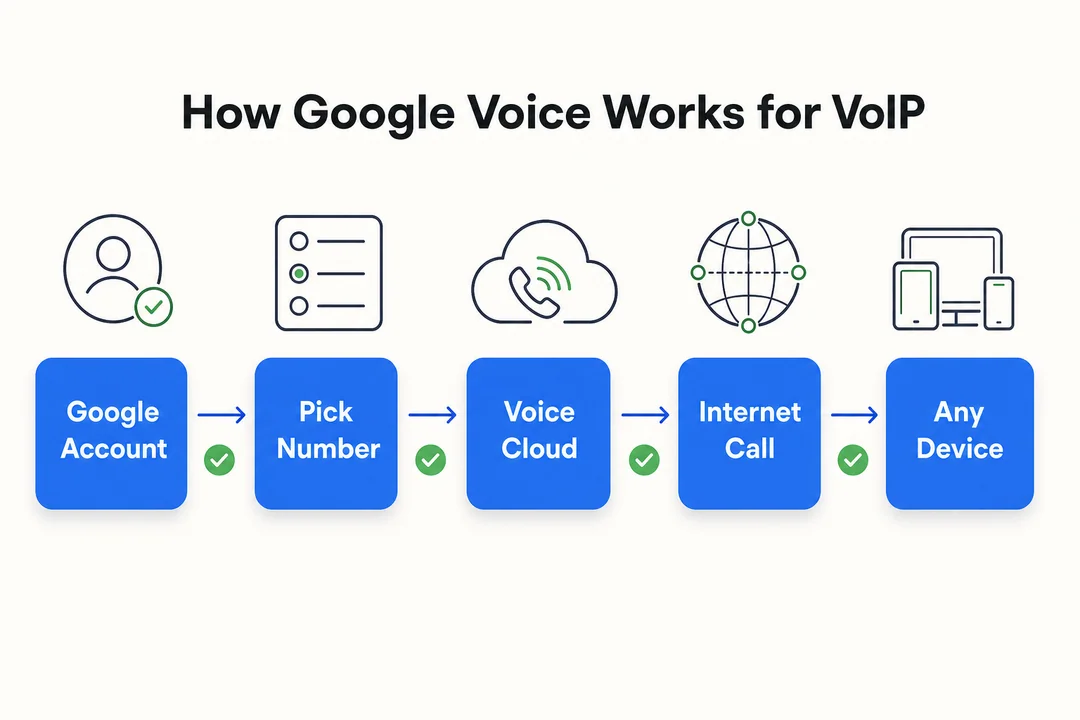
Here is the basic flow:
- You place a call in the Google Voice app or browser.
- The call travels over your internet connection.
- Google Voice handles routing and caller identity.
- The call can ring a linked number or stay inside the app.
- If no one answers, voicemail can take over.
If you use an ATA with a regular phone, the adapter bridges the analog phone to the internet-based setup.
When Google Voice works well for home and small-office calling
Google Voice is a strong fit when you want:
- One number across devices.
- Simple personal calling.
- A backup line.
- A light home-office setup.
- Easy voicemail and call handling.
It works best when convenience matters more than advanced routing, call queues, or strict business controls.
Why Google Voice is not a full replacement for traditional phone service
Google Voice is useful, but it has clear limits. It depends on internet access, compatible devices, and the way Google handles service changes.
Important limits:
- It should not be treated as a full emergency-calling replacement.
- Hardware compatibility can be narrow.
- Business-grade features are limited compared with dedicated VoIP systems.
- Reliability is good for many users, but not identical to a landline.
If you need a primary phone line for critical use, keep a backup service.
Quick Answer: The Easiest Ways to Use Google Voice
Use Google Voice on the mobile app
This is the simplest option for most users.
You need:
- A Google account.
- A Google Voice number.
- The Google Voice app.
- Wi-Fi or mobile data.
Best for:
- Personal calls.
- Texts.
- Voicemail.
Pros:
- Fast to set up.
- No extra hardware.
- Easy to use anywhere.
Limitations:
- Depends on app and internet quality.
Use Google Voice in a web browser on a computer or Chromebook
This is a good desk-based option.
You sign in, allow microphone access, and place calls from the web. Chromebook users can use this path too.
Best for:
- Headset calling.
- Office desk work.
- Users who do not want extra hardware.
Quick setup:
- Sign in to Google Voice.
- Allow microphone and speaker access.
- Test audio with a call.
- Adjust browser permissions if needed.
Forward calls to an existing mobile number
This is best if you want to keep your current mobile service.
It lets Google Voice send calls to your phone without changing your existing line.
Best for:
- People who want one public number.
- Users who do not want new hardware.
- Simple fallback routing.
This is not the same as turning your phone into native VoIP hardware. It is call forwarding, not a full device conversion.
Use a regular desk phone or home phone with a supported ATA adapter
This is the path for people who want a familiar handset.
An ATA connects a regular analog phone to a Google Voice-compatible setup.
Best for:
- Home phone replacement.
- A desk phone on a small setup.
- Users who want a traditional handset.
This path takes more setup than the app or browser, and compatibility matters a lot.
Can You Use a Desk Phone or Home Phone With Google Voice?
Yes, but only with specific Google Voice-compatible hardware
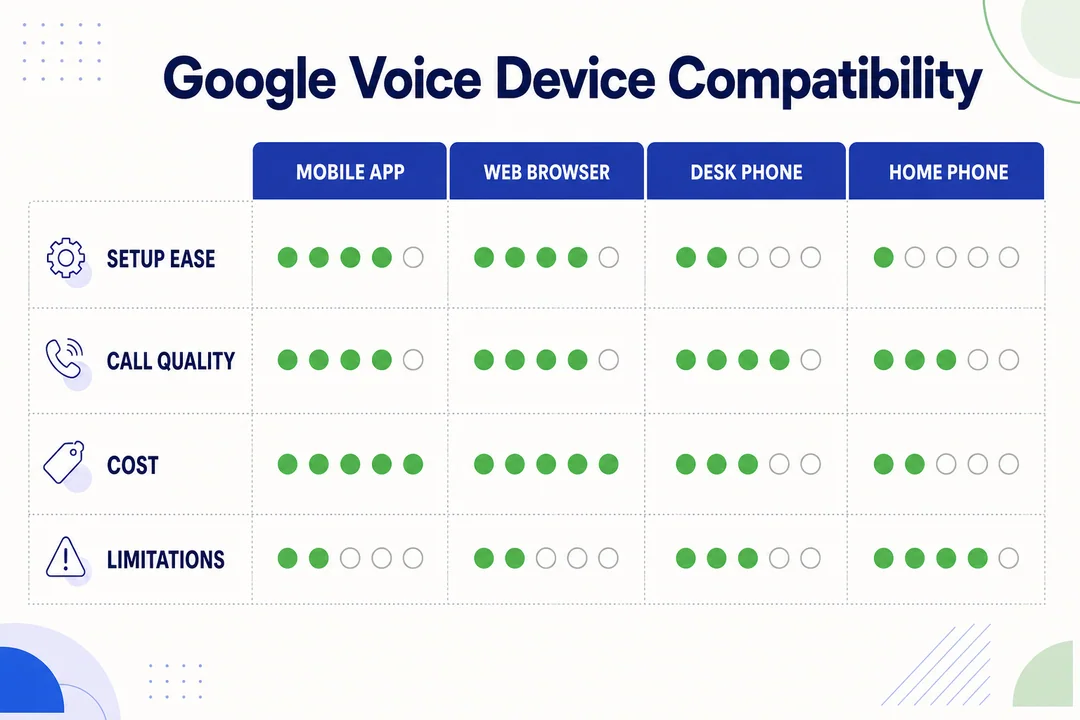
Yes, you can use a regular phone with Google Voice, but only with supported hardware. The most commonly referenced models are:
- Poly OBi200
- Poly OBi202
- Poly OBi212
Do not assume any random VoIP device will work. Google Voice compatibility is model-specific.
What an ATA is and why it matters
An ATA is an Analog Telephone Adapter. It lets a regular analog phone work with an internet-based calling setup.
Think of it as a translator between old phone hardware and Google Voice.
Basic flow:
- Your analog phone plugs into the ATA.
- The ATA connects to your router by Ethernet.
- Google Voice handles the calling service through supported device setup.
This matters because a standard house phone cannot talk to Google Voice on its own.
Why not every VoIP phone works directly with Google Voice
Many VoIP phones expect standard SIP credentials (SIP is a common calling setup used by many internet phone providers). Consumer Google Voice does not behave like a normal open SIP service.
That means:
- Many IP phones will not work plug-and-play.
- A device that works with one VoIP provider may fail with Google Voice.
- You should verify model-specific support before buying.
A common mistake is buying a generic IP desk phone and expecting direct compatibility.
Ethernet, internet connection, and basic setup needs
For adapter-based use, you need:
- A modem or router.
- An Ethernet cable.
- Stable broadband.
- An analog phone if you are using an ATA.
Wired Ethernet is usually more reliable than Wi-Fi for this setup.
If you see random dropouts, the first thing to check is the network path, not the phone itself.
Google Voice Compatible Hardware for Regular Phones
Poly OBi200
The Poly OBi200 is a simple adapter for one analog phone setup.
Best for:
- A single home phone.
- Users who want a compact setup.
- Basic calling without extra complexity.
Pros:
- Simple.
- Widely referenced for Google Voice.
- Good for basic use.
Cons:
- Older hardware.
- Limited availability.
- Used units may be risky.
If you want the simplest supported adapter-style setup, this is one of the most common choices.
Poly OBi202
The Poly OBi202 offers more flexibility than the OBi200.
Best for:
- Users who want more than the most basic setup.
- Light home-office use.
- People who may need more connection options.
Pros:
- More flexible than the OBi200.
- Still well known in Google Voice setups.
Cons:
- Older hardware.
- Can be more than a casual user needs.
If you want a slightly more flexible adapter, this is the next step up.
Poly OBi212
The Poly OBi212 is often considered for more complex analog setups.
Best for:
- Small office use.
- Mixed analog scenarios.
- Users who need more than a simple single-phone setup.
Pros:
- Designed for broader analog integration.
- Can suit more demanding basic office needs.
Cons:
- Less beginner-friendly.
- Not the first choice if you only need one simple phone.
What to know about discontinued or older OBi models
This is where many buyers make mistakes. Older OBi devices can still work, but they come with risk.
Watch for:
- Unclear stock status.
- Used-device wear.
- Missing firmware updates.
- Changes in service-side compatibility.
Before buying used hardware:
- Check the seller’s reputation.
- Confirm the exact model.
- Verify current Google Voice compatibility.
- Make sure firmware support is still available.
Do not pay a premium for an old unit without checking current support first.
Personal Google Voice vs Google Workspace compatibility
Personal Google Voice and Google Workspace Google Voice are not the same.
Key difference:
- Personal Google Voice is for consumer use.
- Google Workspace Google Voice is managed through a business account and can follow different rules.
Do not assume a setup guide for personal use applies cleanly to Workspace. Always match the hardware and process to your account type.
How to Set Up Google Voice With a Regular Phone
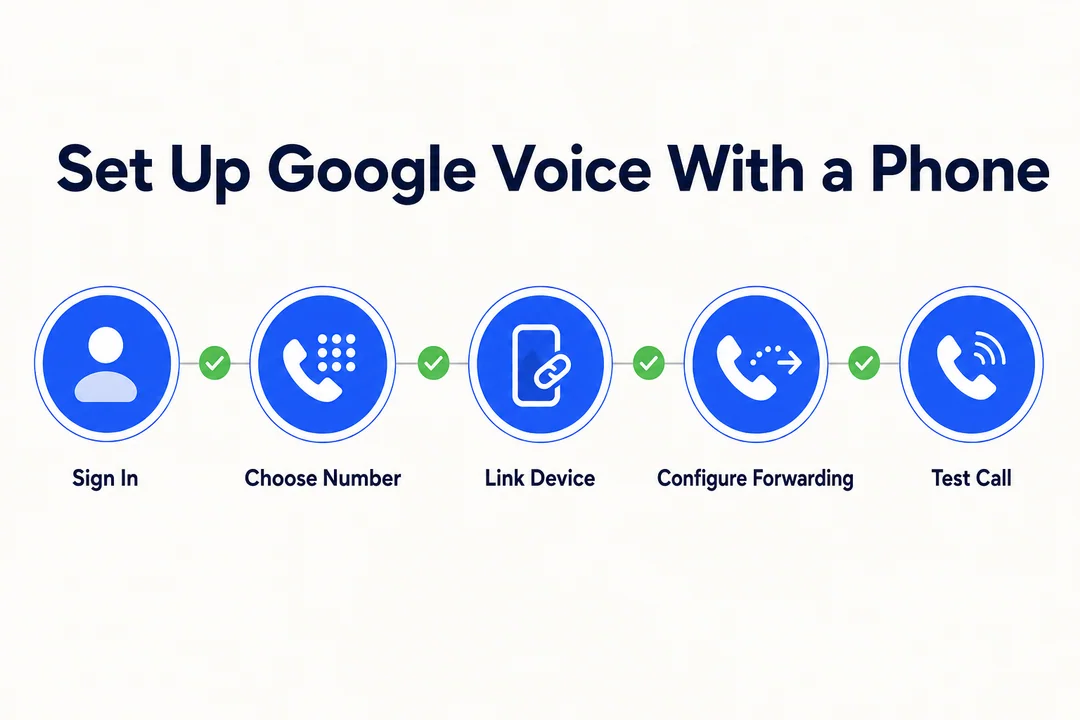
Step 1: Confirm your Google Voice account type
First, check whether you have personal Google Voice or Google Workspace Google Voice.
You should verify:
- The account type.
- Your region and availability.
- Whether the number and setup you want are supported.
This matters because the wrong account type leads to bad hardware choices.
Step 2: Choose a supported Analog Telephone Adapter
Use a known compatible ATA only.
Buying tips:
- Pick a model with proven Google Voice support.
- Avoid generic adapters unless current compatibility is confirmed.
- Buy from a seller with a return policy if possible.
- Be careful with used units.
Good examples for Google Voice setups are the Poly OBi200, OBi202, and OBi212.
Step 3: Connect the adapter to Ethernet and your analog phone
Use this order:
- Connect the ATA to your router or modem with Ethernet.
- Plug the analog phone into the ATA phone port.
- Connect power.
- Wait for the device to initialize.
A wired connection is usually more stable than Wi-Fi. If the lights look wrong or the device never registers, check the cables first.
Step 4: Sign in and authorize the device with your Google account
Use the Google account you plan to keep on that setup.
Keep these points in mind:
- Sign in carefully.
- Follow device authorization prompts.
- Do not mix personal and work accounts by accident.
If the wrong account is linked, the setup can become messy fast.
Step 5: Update firmware if needed
Firmware updates matter because they can fix bugs and improve compatibility.
Why this matters:
- Better reliability.
- Better service compatibility.
- Fewer random problems after changes on the service side.
If the device has not been updated in a long time, check official support resources before trusting it for daily use.
Step 6: Test incoming and outgoing calls
Test everything before you rely on the setup.
Check:
- Outgoing calls.
- Incoming calls.
- Caller ID.
- Ring behavior.
- Audio in both directions.
Test again after your network has been under normal load for a while. Some problems only show up when the connection is busy.
Step 7: Check voicemail, call forwarding, and ring settings
After the call test, tune the settings.
Review:
- Voicemail greeting.
- Call forwarding rules.
- Ring preferences.
- Fallback routing.
Keep a backup forwarding option active at first. That gives you a safety net while you confirm the setup is stable.
Best Setup Path Based on Your Use Case
Best option for casual personal calling
Use the mobile app first.
It is the easiest, cheapest, and least stressful option. It works well for calls, texts, and voicemail without extra hardware.
Best option for a home phone setup
Use a supported ATA with an analog phone.
This is best if you want a familiar handset in the home. It feels closest to a traditional phone setup.
Do not treat it as your only emergency-ready line.
Best option for a desk phone in a small office
Use a supported adapter path only if your needs are light.
This works for simple office calling, but it is not a full business phone platform.
Best option if you already have another mobile number
Use call forwarding.
It gives you one public number with minimal setup and no hardware purchase.
Can You Port a VoIP Number Into Google Voice?
The short answer: usually not directly
Usually, you cannot port a VoIP number straight into personal Google Voice.
The common workaround is to move the number to a mobile carrier first, then port it into Google Voice.
Why Google Voice porting typically requires a mobile carrier
For many personal porting workflows, Google Voice expects a number that behaves like a mobile line. That is why users often need a mobile carrier in the middle.
A Mobile Network Operator (MNO) is a real wireless carrier that provides mobile service. In many cases, this is the step that makes the second port possible.
How to check porting eligibility first
Before you do anything, verify:
- The number is active.
- The current provider allows port-out.
- The account information is correct.
- The number is supported for Google Voice porting.
Do not cancel the current line until eligibility is confirmed.
Common scenario: moving a number from a VoIP provider to personal Google Voice
The typical path looks like this:
- Move the number from the VoIP provider to a mobile carrier.
- Wait until the first port fully completes.
- Then submit the Google Voice port request.
Risks include:
- Delays.
- Mismatched account data.
- Requests getting stuck if you move too fast.
A rushed port is one of the most common reasons for failure.
Step-by-Step: How to Port a Number to Google Voice
Step 1: Verify that the number is eligible
Check whether the number can move from the current provider, then into Google Voice.
Collect these details:
- Account holder name.
- Billing address.
- Account number.
- PIN, if available.
- Line status.
Most porting problems start with bad account data.
Step 2: Port the number to a mobile carrier first
Move the number to a mobile carrier before attempting the Google Voice port.
Important:
- Do not cancel the original line manually.
- Let the port complete fully.
- Keep all account details accurate.
Step 3: Wait at least one full week
Wait at least one full week after the first port before starting the Google Voice transfer.
Why:
- Systems may not be fully synced.
- Recent transfers can trigger rejection.
- Rushing increases the chance of failure.
Step 4: Confirm calling and texting work on the mobile line
Before you port again, test the mobile line.
Check:
- Incoming calls.
- Outgoing calls.
- Text messages.
- Caller ID behavior.
If calling or texting is still unstable, wait longer.
Step 5: Get the account number and PIN from the carrier
Ask the carrier for the exact port-out details.
You usually need:
- Account number.
- Port-out PIN.
Do not assume your app login is the same as your porting credentials.
Step 6: Submit the Google Voice porting request
Fill out the Google Voice port request carefully.
Make sure the details match exactly:
- Number.
- Account name.
- Billing info.
- Google account you want to keep.
Use the account you plan to own long term.
Step 7: Pay the porting fee and complete verification
Porting may require a fee.
Finish every verification prompt carefully. A missed step can stall the request.
Step 8: Test calls, texts, and voicemail after the transfer
After the port completes, test everything again:
- Inbound calls.
- Outbound calls.
- Voicemail.
- SMS, if applicable.
- Call forwarding.
Keep backup service active until the new setup is stable.
Google Voice VoIP Limits and Important Warnings
Google Voice cannot natively replace 911 emergency service
Do not rely on Google Voice as your only emergency-calling option.
Keep another reliable phone service if emergency calling matters in your home.
You still need another active phone service in many cases
Google Voice often works best as part of a broader setup, not as the only line.
This matters for:
- Call forwarding.
- Number porting.
- Backup access.
- Emergency readiness.
Porting is limited by carrier type and eligibility
Not every number moves the same way.
In general:
- Wireless numbers are usually easier.
- VoIP numbers can be harder.
- Landline numbers may need extra steps.
Check eligibility first.
Some features are limited outside the United States
Google Voice has geographic restrictions. Do not assume full support if you are outside the U.S. or traveling long term.
Personal Google Voice and Google Workspace are not the same setup
This is worth repeating. Business accounts and personal accounts follow different rules, support paths, and setup expectations.
Common Google Voice VoIP Problems and Easy Fixes
Adapter not connecting to Google Voice
Likely causes:
- Unsupported adapter.
- Wrong account type.
- Login or authorization problem.
- Outdated firmware.
Quick fixes:
- Confirm the device is supported.
- Restart the modem, router, and ATA.
- Check the Google account used.
- Update firmware if available.
Calls not ringing on a desk phone or home phone
Check these first:
- Forwarding and ring settings.
- Device registration.
- Phone cord and handset.
- Whether you are testing with only one phone.
If one phone works and another does not, the issue is likely local hardware.
Poor audio quality or dropped calls
Common causes:
- Bandwidth congestion.
- Weak Wi-Fi.
- Router overload.
- ISP instability.
Quick fixes:
- Use Ethernet.
- Pause heavy downloads or uploads.
- Reboot the router.
- Test at another time of day.
Problems after firmware or backend changes
Older devices can break after firmware changes or service-side changes.
This risk is higher with:
- Discontinued hardware.
- Used devices.
- Very old firmware.
If a working setup suddenly fails, check current compatibility first.
Porting request rejected or delayed
Common causes:
- Wrong account number.
- Wrong PIN.
- Line not fully active.
- Port attempted too soon.
- Name or address mismatch.
Recovery checklist:
- Recheck all account data.
- Confirm the line is active.
- Wait if the previous port was recent.
- Resubmit with exact matching details.
Router or Nest WiFi issues affecting VoIP stability
Nest WiFi and other mesh systems can sometimes cause short routing hiccups.
Try this:
- Test the ATA on wired Ethernet.
- Reboot the network gear.
- Reduce home network load.
- Isolate the ATA from Wi-Fi issues if possible.
Do not blame Google Voice until the local network is ruled out.
Google Voice vs Traditional VoIP Services
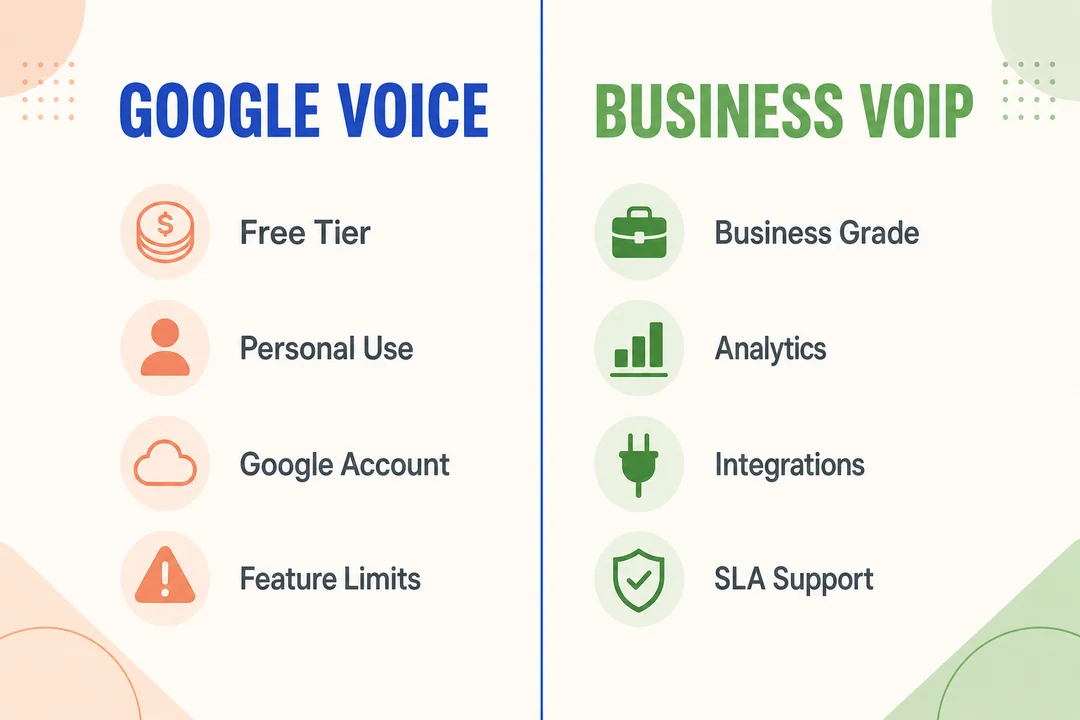
| Feature | Google Voice | Standard VoIP Provider |
|---|---|---|
| Setup simplicity | Very easy | Varies |
| Hardware support | Limited | Wider |
| Emergency calling | Limited | Often better defined |
| Porting flexibility | More restricted | Usually broader |
| Business features | Basic to moderate | Often stronger |
| Pricing model | Simple for many users | Varies by plan |
| Number management | Easy for personal use | More flexible |
| PSTN integration | Basic | Often more complete |
Google Voice is simpler for personal use. A dedicated VoIP provider is usually better if you need advanced routing, team controls, or broader hardware support.
Google Voice vs landline service
A landline usually feels more familiar and stable for emergency use. Google Voice is more flexible, but it is not a straight replacement.
When a dedicated VoIP provider may be a better fit
Choose a standard VoIP provider if you need:
- Teams and multiple users.
- Call queues.
- Advanced admin control.
- Better business routing.
- More open hardware choices.
Who Should Use Google Voice for VoIP
Good fit for personal users
Google Voice works well if you want one number, simple calling, texting, and voicemail with low effort.
Good fit for basic home office needs
It is a good choice for solo professionals and side businesses that need a light, budget-friendly setup.
Not ideal for users who need full business phone features
If you need advanced routing, call queues, compliance controls, or multi-user administration, choose a dedicated business VoIP platform.
Not ideal for users who need dependable emergency calling
If your household depends on one line for critical emergency access, Google Voice should not be your only option.
Frequently Asked Questions
Can I use Google Voice with a landline phone?
Yes, but usually only with a supported ATA and a compatible model such as a Poly OBi adapter. Check current compatibility before buying.
Can I use a VoIP phone with Google Voice directly?
Usually not. Many VoIP phones expect standard SIP access, and consumer Google Voice does not work that way in most cases.
What hardware works natively with Google Voice?
The commonly referenced models are Poly OBi200, Poly OBi202, and Poly OBi212. Verify current support before purchasing, especially if buying used.
Can I port a VoIP number to personal Google Voice?
Usually not directly. Many users need to port the number to a mobile carrier first, then submit the Google Voice port request.
Does Google Voice support 911 calls?
Do not treat Google Voice as a full emergency replacement. Keep another reliable emergency-capable phone service in place.
Simple Setup Checklist for VoIP Google Users
- Choose the simplest path first: app, browser, forwarding, or ATA.
- Confirm whether you have personal Google Voice or Google Workspace.
- Verify hardware compatibility before buying an adapter.
- Use wired Ethernet for adapter-based setups when possible.
- Update firmware if the device supports it.
- Test incoming calls, outgoing calls, voicemail, and caller ID.
- Confirm porting eligibility before moving any number.
- Wait at least one full week after a first port before attempting the next one.
- Keep a backup emergency-capable phone line active.
Conclusion
Google Voice can work as a practical voip google setup, but the best results come from choosing the simplest path that fits your need. For most people, that means the mobile app or browser first. Use call forwarding if you want to keep your current mobile line. Choose an ATA only if you specifically want to use a regular phone.
Before you buy hardware or move your main number, verify compatibility and porting rules. Keep a backup emergency-capable line in place. That is the safest way to build a Google Voice setup that actually works in daily use.
More in Operations & CX Optimization
View all →
Customer Experience Transformation: Framework and Steps
A telecom customer calls support about a billing error. They explain the problem to the IVR system. Then to the first agent. Then get transferred and explain again. Then escalated—and explain a third time. Forty minutes later, they're exhausted and the problem still isn't solved. This is what broken customer experience looks like. And it's costing you customers. Customer experience…

Web Caller Meaning: JavaScript caller, Calling Tools or Portals
“Web caller” is one of those phrases where the search results and the searcher are frequently talking about different things. Three unrelated audiences use it: developers hitting an error on the legacy JavaScript caller property, buyers evaluating browser-based calling software, and people trying to reach a specific portal or training page whose exact name they cannot recall. That fragmentation is…

Customer Experience Strategy: How to Build One That Works
Customer experience is getting worse, not better. Forrester's 2025 Global CX Index found that 21% of brands declined in CX quality while only 6% improved — and in the US, 25% declined against 7% that improved, the second consecutive year of that pattern. Most of those brands were not neglecting customer experience. They were working on it without a strategy…



 English
  Russian
  Chinese