

Call recording helps you save phone conversations for proof, training, follow-up, or support. In this guide, mình will show you how to record calls on iPhone, Android, and business phone systems, where recordings are stored, what consent rules to watch, and how to choose the right setup for personal or team use.
Key Takeaways
- Call recording saves a phone conversation as a digital audio file.
- You should check local laws before recording any call.
- iPhone and Android support differs by device, region, and carrier.
- Some phones let you record one call, while others support auto-recording.
- On iPhone, saved recordings may also show transcripts in Notes.
- On Android, recordings are often stored in the Phone app or local device storage.
- Deleting a call log can also remove the recording on some devices.
- Business systems like FreePBX give teams more control over recording, access, and retention.
- CRM integration makes it easier to attach recordings to customers, deals, and tickets.
- Secure storage and access control matter as much as the recording itself.
What Call Recording Is and When You Can Use It
Definition of call recording
Call recording means saving a phone conversation as a digital audio file. The source can be a mobile phone, a Phone app, or a business telephony system.
People also use terms like voice recording, phone conversation capture, call logging, and audio call archiving. Not every voice memo or screen recording counts as true call recording.
Common personal and business use cases
Personal use is usually simple. People record calls to keep instructions, confirm scheduling details, or save interview notes.
Business use is broader. Teams record calls for training, sales review, customer dispute handling, and quality checks.
Common use cases:
- Personal reminders and follow-ups.
- Sales coaching and call review.
- Support dispute resolution.
- Compliance and QA in customer service.
- CRM integration for recorded calls in larger teams.
Device, carrier, and regional availability limits
Call recording depends on the phone model, operating system, Phone app, carrier, and country. You may follow the right steps and still not see the feature.
Main limits:
- Android OS and Apple iOS version support.
- Phone app availability.
- Regional restriction.
- Carrier policy differences.
Legal and Consent Requirements Before Recording
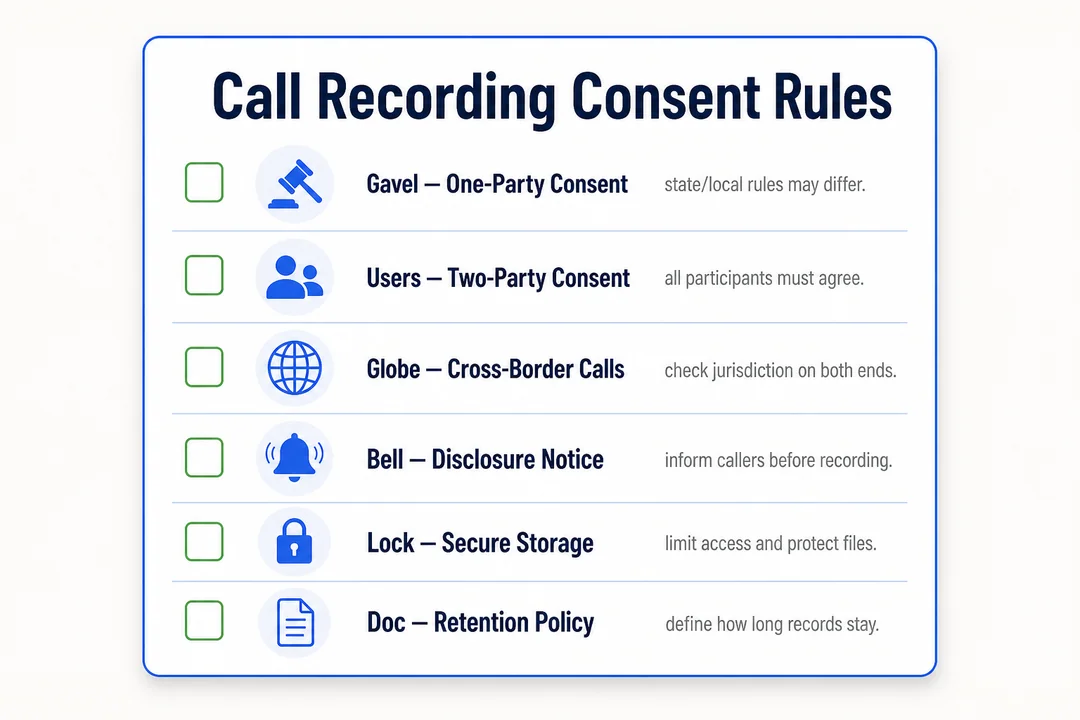
Why consent notifications matter
Before recording, tell the other person the call is being recorded. This is called a consent notification or disclosure notification.
Many systems do this automatically. It matters because it reduces legal risk and builds trust. It also makes the recording easier to use in support and sales settings.
A simple disclosure script:
This call may be recorded for accuracy and service purposes.
When all-party consent may be required
The answer to is it legal to record phone calls without consent depends on local law and where everyone on the call is located. Some places require all parties to agree.
What changes the rule:
- Your location.
- The other participant’s location.
- Whether the call is personal or business-related.
- Whether sensitive information is discussed.
For interstate or international calls, use the strictest practical standard. If you are not sure, get consent first.
Basic privacy and compliance considerations
Call recordings may contain personal data, payment details, health data, or customer records. That makes privacy compliance important.
At a high level, you should:
- Collect only what you need.
- Restrict access.
- Avoid casual sharing.
- Set deletion rules.
- Treat transcripts as sensitive too, because text is searchable.
Best practices before you start recording
Use this checklist before you record:
- Confirm local recording laws.
- Notify all participants.
- Test audio quality.
- Verify storage location.
- Set retention and deletion rules.
Avoid these mistakes:
- Recording first and asking later.
- Sharing files through unsecured apps.
- Keeping recordings forever.
- Ignoring transcript exposure.
How to Record Calls on iPhone
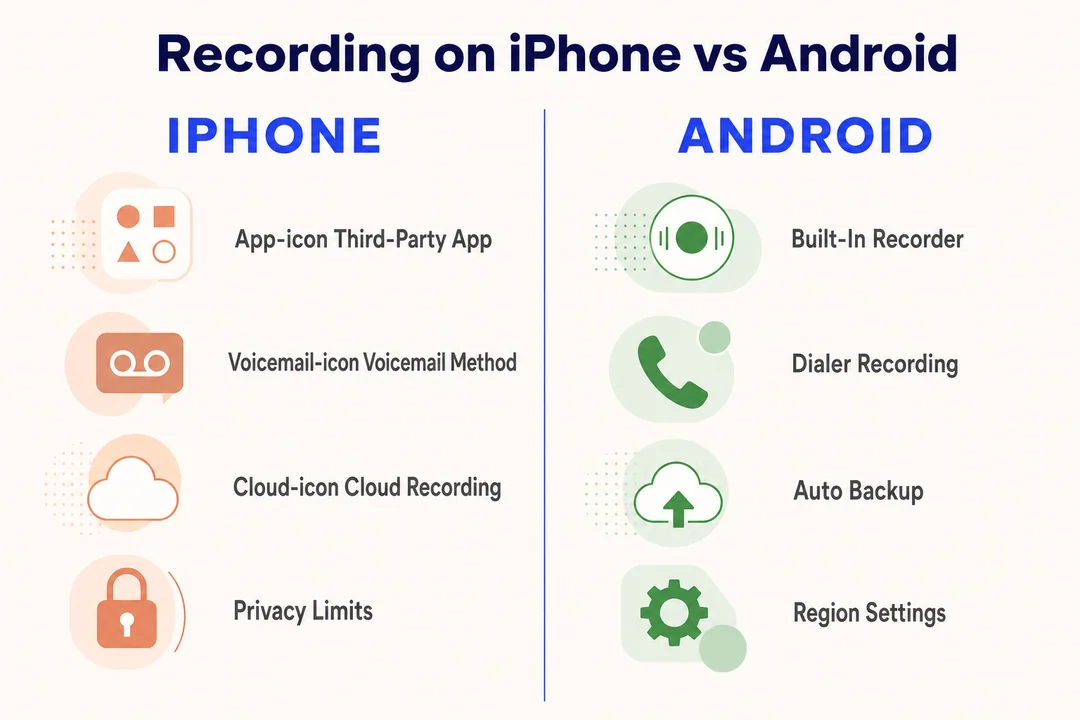
Supported iPhone and iOS requirements
To enable call recording on iPhone iOS, check that your device, iOS version, and region support it. Availability can vary by rollout, hardware, and market.
What to verify:
- Your iPhone model is supported.
- Your iOS version is current.
- Your region supports the feature.
- You have checked official Apple support pages.
Turn on call recording in Phone app settings
The menu name can vary by iOS version, but the flow is usually simple.
- Open the Phone app or iPhone Settings.
- Find the call recording option.
- Turn on recording if it is available.
- Confirm any disclosure or prompt on screen.
If you do not see the option, the feature may not be available on your device or in your region.
Start recording during an active call
Once the call is connected, tap the recording control if your device supports it.
Quick tips:
- Record in a quiet place for better audio.
- Avoid speaker echo if sound quality matters.
- Expect automatic disclosure notifications on supported systems.
Stop a recording and save it
You can stop recording manually, or it may end when the call ends. The file is usually saved automatically after the session.
In simple terms, the result is a digital audio file stored for later playback or sharing.
Watch for failed saves if:
- The call drops.
- Storage is full.
- The app closes unexpectedly.
View call transcripts in Notes
On supported setups, Apple iOS Notes may show your saved call recording and transcript.
Basic flow:
- Open Notes.
- Open the saved call note.
- Review the transcript.
- Search for key phrases if needed.
Transcript accuracy depends on:
- Call clarity.
- Background noise.
- Accent and speech speed.
- Language support.
Playback, share, and delete recorded calls
You can usually:
- Play the recording inside Notes or the linked app.
- Share it through supported apps or export options.
- Delete it from the recording view or Notes.
Best practice: share recordings only through secure channels. Avoid sending sensitive calls through casual chat apps.
Turn off call recording on iPhone
If you want to stop future recordings:
- Open Settings.
- Go to Phone.
- Open Call Recording.
- Turn it off.
People turn it off to protect privacy, reduce storage use, or avoid keeping unnecessary files.
How to Record Calls on Android
Supported Android versions and device requirements
If you want to know how to record calls on Android phone, start with the device, region, and app. Support varies by Android OS, phone brand, and Google Phone app version.
What to check:
- Your phone uses a supported version of Android OS.
- The Google Phone app is installed and updated.
- Your country or region supports the feature.
- Your manufacturer has not removed call recording.
Record an individual call in the Phone app
- Open the Phone app.
- Make or answer a call.
- Wait until the call connects.
- Tap Record on the call screen.
- Tap Stop recording when finished.
If this is your first time, test on a non-critical call first. Some devices also play a recording announcement automatically.
Automatically record unknown numbers
Some Android phones let you auto-record unknown numbers.
- Open the Phone app.
- Go to Settings.
- Open Call recording.
- Turn on recording for numbers not in your contacts.
This is useful for spam screening or business follow-up, but it can create extra storage use.
Automatically record selected contacts
You can also set recording for specific contacts.
Good use cases:
- Vendors.
- Repeat customers.
- Support contacts.
- Sales follow-up numbers.
Steps usually look like this:
- Open Phone settings.
- Go to Call recording.
- Choose Selected contacts.
- Add the contact.
Reminder: convenience does not replace consent.
Find and play saved call recordings
To access saved call recordings on Android, check the Phone app first.
Common places:
- The Google Phone app.
- Call history.
- A local recordings folder, depending on the device.
Typical flow:
- Open Phone.
- Go to History or Recents.
- Tap the recorded call.
- Press Play.
File names and storage paths can differ by brand.
Share or delete recordings
You can usually share or delete recordings from the same place you play them.
Be careful when sharing:
- Do not send sensitive audio through unsecured chat.
- Check whether a cloud copy also exists.
- Confirm the recipient needs the file.
Deleting from the app may not remove every backup or synced copy.
Set automatic deletion and retention length
Automatic deletion manages storage duration. It is useful if you record often.
Practical retention ideas:
- Short-term: keep only a few days for reminders.
- Ongoing work calls: keep what you need for follow-up.
- Business use: follow a defined retention policy.
Do not keep recordings longer than necessary.
Where Call Recordings Are Stored
Local device storage vs cloud storage
Native mobile call recording often uses secure device-level local storage.
Local storage
- Direct control.
- Fast access.
- Less exposure if kept on one device.
Cloud storage
- Easier backup and sharing.
- Better for teams.
- More exposure if access is not controlled.
Choose local storage for control. Choose cloud storage for collaboration.
Why deleted call logs can remove recordings
On some phones, the recording is tied to the call history entry. If you delete the log, the recording can disappear too.
Quick recovery checklist:
- Check trash or recycle areas.
- Look in the app storage section.
- Search Files or Downloads.
- Check backups if you use them.
What to do to keep important recordings safe
If a recording matters, protect it right away.
Best practices:
- Rename the file clearly.
- Move it to secure storage.
- Limit who can access it.
- Encrypt it if possible.
- Set a retention date.
For business users, track who can download, share, or delete files.
What to Do If Call Recording Is Not Available
Check region and feature availability
Feature availability is one of the most common reasons the option is missing.
Check:
- Official support pages.
- Your country or region.
- The current Phone app release.
- Your phone’s feature rollout status.
Check device model and operating system
Verify your model and OS version in settings.
What matters:
- Older phones may not support recording.
- Hardware support and software version are different.
- An update does not always add the feature.
Update the Phone app or iOS/Android version
Outdated software can hide or break recording features.
Do this:
- Update the Phone app.
- Update iOS or Android.
- Restart the phone.
- Check the call recording menu again.
Confirm permissions and carrier support
Check these permissions:
- Microphone.
- Storage.
- Phone or telephony access.
Also confirm carrier support. Some carriers limit or disable native recording features.
Simple troubleshooting steps for failed recordings
If recording fails, try this checklist:
| Issue | Likely cause | Fix |
|---|---|---|
| No Record button | Feature unavailable | Check region, device, and app version |
| No sound | Permission or audio issue | Review microphone and audio settings |
| Missing file | Storage or save failure | Check free space and app storage |
| Recording stops early | Call dropped or app conflict | Test another call and close conflicting apps |
Call Recording for Business Systems and CRM Use
When to use call recording in PBX, VoIP, and UC systems
Native phone recording works for simple needs. Once you have multiple users, you may need a business system.
Use a business setup if you need:
- Multiple agents.
- QA review.
- Compliance monitoring.
- Central storage.
- Manager access.
Call recording in FreePBX and similar PBX platforms
FreePBX gives businesses centralized control over call recording.
Common capabilities:
- On-demand recording.
- Automatic recording.
- Extension-level rules.
- Queue-level rules.
Example: a support team can record every queue call, while leadership calls stay manual only.
CRM integration for recorded calls
CRM integration for recorded calls means the audio file links to a contact, deal, ticket, or note inside your CRM.
Benefits:
- Better context.
- Easier handoff.
- Faster coaching.
- Clearer follow-up.
This is especially useful for sales and support teams.
Audio archiving, storage, and access control
Audio archiving means storing call recordings in a managed system for later use.
A good archive policy includes:
- Defined retention.
- Role-based access.
- Secure storage.
- Audit trails.
- Controlled downloads.
Bad practice is keeping everything forever with no access rules.
Compliance needs for customer support and sales teams
Support and sales teams need clear workflows for consent, disclosure, retention, and review.
Stricter rules often apply in:
- Healthcare.
- Finance.
- Insurance.
- Outsourced support.
If your team handles sensitive data, build compliance into the recording process from the start.
Best Call Recording Solutions by Use Case
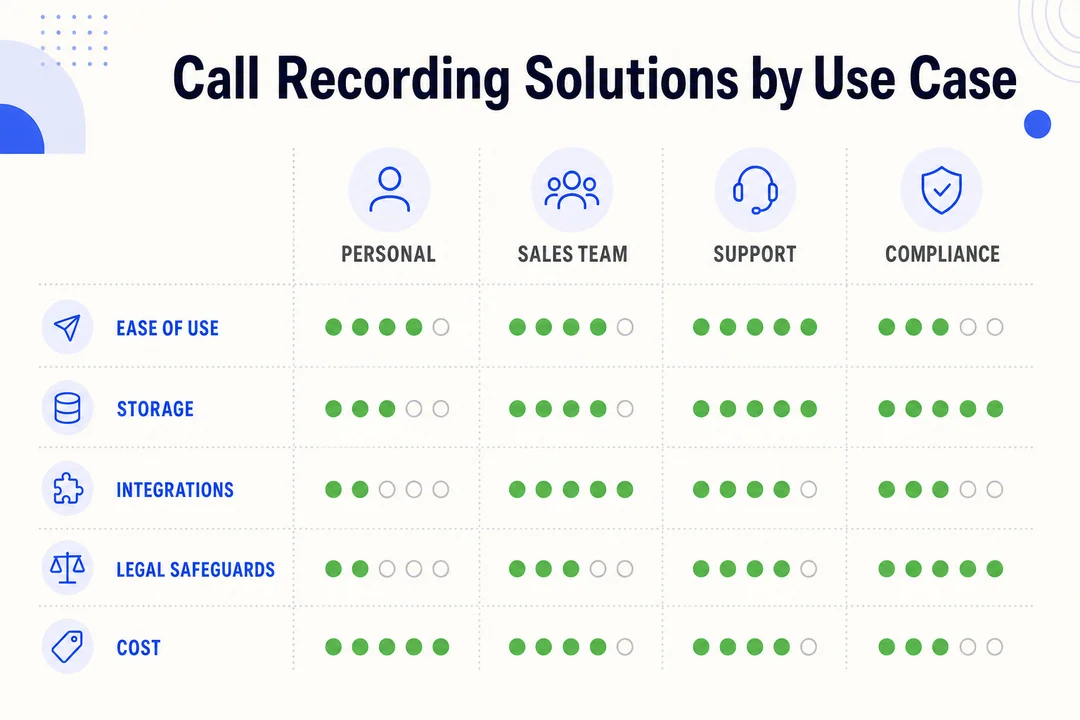
Native phone recording for personal use
Best for casual users who want the simplest option.
Pros:
- Low friction.
- Built into the phone.
- Easy to start.
Cons:
- Limited availability.
- Less control.
- Usually not ideal for teams.
Android Phone app recording for everyday users
Android often gives more flexibility than iPhone, but support depends on the brand and carrier.
Pros:
- Auto-record options on some devices.
- Simple app-based control.
- Good for routine use.
Cons:
- Feature gaps across brands.
- Regional limits.
- Not always consistent.
iPhone call recording options for Apple users
iPhone users benefit from ecosystem integration and transcript support where available.
Pros:
- Notes integration.
- Easy playback and review.
- Clean user experience.
Cons:
- Region limits.
- Rollout differences.
- Fewer options than some Android devices.
PBX and CRM-based recording for teams
Best for businesses that need control, reporting, and shared access.
Pros:
- Centralized call logging.
- Audio archiving.
- Access control.
- CRM integration for recorded calls.
Cons:
- Higher setup effort.
- More admin work.
- Policy and compliance planning required.
Which option fits your needs
| Use case | Best fit |
|---|---|
| Occasional personal use | Native phone recording |
| Frequent mobile recording | Android Phone app or iPhone supported recording |
| Small team | PBX or CRM-linked setup |
| Regulated business | PBX with disclosure, retention, and access controls |
Best Practices for Recording Business Calls Legally
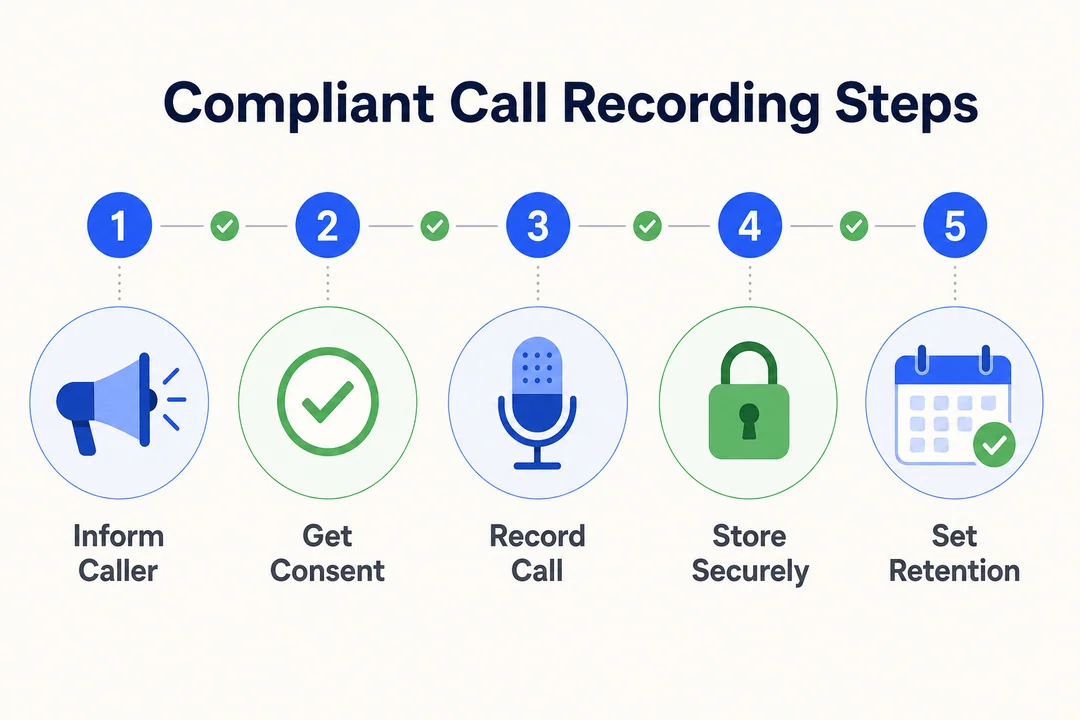
Use clear disclosure before recording
Always use the same disclosure approach across your team.
A simple script:
This call may be recorded for quality and training purposes.
If possible, use automatic disclosure notification so agents do not forget.
Limit access to recordings
Use least-privilege access.
That means:
- Only the right people can listen.
- Downloads are restricted where possible.
- Access is logged and reviewed.
Set retention rules
Retention should match your legal and business needs.
Examples:
- Short retention for routine support calls.
- Medium retention for sales coaching.
- Longer retention only when required by regulation.
Protect recordings with secure storage
Protect call recordings with:
- Encryption.
- Secure backups.
- Access logs.
- Controlled storage locations.
Voice data security and encryption matter because recordings can be copied or misused easily.
Train staff on privacy compliance
Train staff on:
- What to say before recording.
- When not to record.
- How to share files.
- How to handle deletion requests.
- When to escalate issues.
Refresher training matters. People forget the rules fast.
Frequently Asked Questions
Is it legal to record phone calls without consent?
It depends on local law and where the participants are located. Some places require everyone on the call to agree, so always check the rule before recording.
How do I know if my phone supports call recording?
Check your phone model, Phone app, OS version, carrier, and region. If the feature is missing in settings, it may not be supported on your device.
Where are call recordings saved on iPhone and Android?
On iPhone, recordings may appear in Notes. On Android, they are often in the Phone app, call history, or local device storage. The exact location depends on the device.
Can I automatically record all calls?
Yes, on some Android phones and business PBX systems. iPhone support is more limited and depends on the version and region.
Can I transcribe recorded calls?
Yes, on supported platforms. Transcript accuracy depends on audio quality, language support, and background noise.
How do I delete a recorded call permanently?
Delete it in the app, then check trash, backups, and any synced storage. Business systems may also require admin cleanup rules.
Conclusion
Call recording is useful, but only if you set it up the right way. Start with consent, confirm feature availability, and choose the right storage and access model for your needs.
For personal use, check your phone’s built-in options and test them safely. For business use, choose a PBX or CRM-integrated call recording setup with disclosure, retention, and access controls built in.
More in Operations & CX Optimization
View all →
Customer Experience Transformation: Framework and Steps
A telecom customer calls support about a billing error. They explain the problem to the IVR system. Then to the first agent. Then get transferred and explain again. Then escalated—and explain a third time. Forty minutes later, they're exhausted and the problem still isn't solved. This is what broken customer experience looks like. And it's costing you customers. Customer experience…


Web Caller Meaning: JavaScript caller, Calling Tools or Portals
“Web caller” is one of those phrases where the search results and the searcher are frequently talking about different things. Three unrelated audiences use it: developers hitting an error on the legacy JavaScript caller property, buyers evaluating browser-based calling software, and people trying to reach a specific portal or training page whose exact name they cannot recall. That fragmentation is…

Customer Experience Strategy: How to Build One That Works
Customer experience is getting worse, not better. Forrester's 2025 Global CX Index found that 21% of brands declined in CX quality while only 6% improved — and in the US, 25% declined against 7% that improved, the second consecutive year of that pattern. Most of those brands were not neglecting customer experience. They were working on it without a strategy…



 English
  Russian
  Chinese