

If your business calls sound choppy, robotic, or slightly delayed, the problem may be jitter VoIP, not just slow internet. That is why this issue often confuses teams: bandwidth may look fine on a basic speed test, yet VoIP call quality still drops during real conversations. Jitter is a common cause of poor call performance in offices, remote work setups, and shared business networks. This guide explains what jitter in VoIP means, how it affects calls, what level is acceptable, what usually causes it, how to test it, and what you can do to reduce it without turning the issue into a full networking project.
What Is Jitter in VoIP?
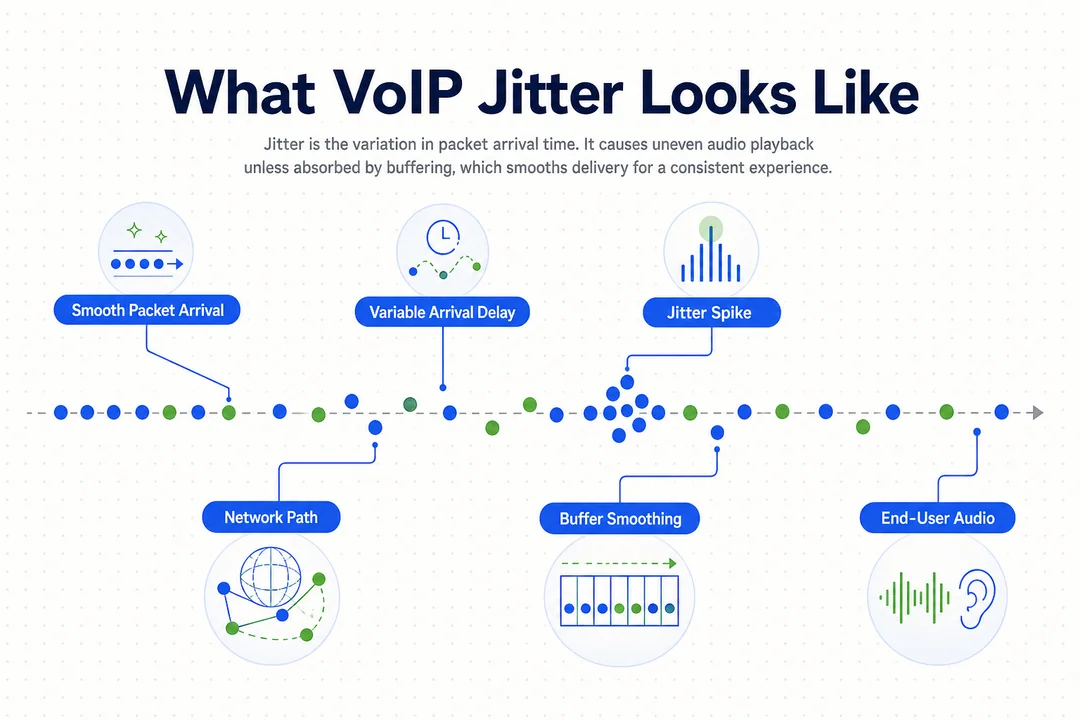
Jitter in VoIP is the variation in timing between voice data packets as they arrive over a network. In simple terms, the packets may still arrive, but not at a steady pace. That uneven timing is called packet delay variation, and it can hurt call clarity even when overall internet speed seems adequate.
In jitter VoIP situations, the issue is not always that the connection is slow. The bigger problem is inconsistent packet arrival. Voice calls depend on audio packets reaching the other side in a steady rhythm. When they arrive too early, too late, or unevenly, the conversation can sound unstable.
Why VoIP Is Sensitive to Packet Timing
VoIP works by breaking voice into data packets and sending them over the internet. Because this is real-time communication, timing matters far more than it does for email or file transfers.
A small delay in an email is irrelevant. A small timing variation in a live call is not.
This is why even moderate VoIP jitter can create noticeable call issues:
- Voice packets arrive out of rhythm
- Audio playback becomes uneven
- Parts of speech may sound clipped or unnatural
Simple Example of Jitter During a Call
A support team may notice a call sounds normal for a few seconds, then suddenly becomes uneven. The speaker is still connected, but the listener hears robotic audio, short gaps, or delayed speech.
That does not always mean the call is dropping. It often means packet timing is unstable.
How Jitter Affects Call Quality
Jitter affects how smooth a conversation sounds. When voice packets arrive unevenly, the receiving system has less ability to play audio back in a natural flow. The result is VoIP audio instability that users hear immediately, even if they cannot identify the cause.
In practice, high jitter can make a call feel broken without causing a full disconnect. That is why users often describe the issue as “bad audio” rather than a network problem.
Common Signs of High Jitter
When high jitter is present, users commonly report:
- Choppy audio
- Choppy or robotic voice
- Delayed calls or delayed replies between speakers
- Dropped words or clipped syllables
- Echo or light distortion
- Unnatural conversation rhythm that makes people talk over each other
These symptoms can overlap with latency and packet loss, so jitter should not be checked in isolation.
Why It Matters in Business Communication
In a business environment, poor call quality is more than an annoyance. It affects customer experience, forces agents to repeat themselves, and lowers agent efficiency.
This is especially visible in:
- Support teams handling back-to-back calls
- Sales teams running outbound campaigns
- Remote staff working on shared home internet
- Operations teams relying on voice for fast coordination
A few seconds of broken audio can turn a simple conversation into rework, confusion, or lost trust.
Jitter vs. Latency vs. Packet Loss: What’s the Difference?
Most users do not describe technical root causes. They describe symptoms like delay, broken audio, or missing words. That is why latency vs jitter is often misunderstood, and packet loss gets grouped into the same problem.
They are related, but they are not the same.
- Jitter = uneven timing between packets
- Latency = total delay in transmission
- Packet loss = some packets never arrive
All three affect network performance for real-time communication, and they can happen at the same time.
Quick Comparison Table
| Issue | What it means | What users hear | Typical benchmark |
|---|---|---|---|
| Jitter | Packet timing varies | Choppy or uneven audio | Ideally under 20 ms; under 30 ms usually acceptable |
| Latency | Overall delay in transmission | Noticeable lag between speakers | Under 150 ms one-way is generally acceptable |
| Packet Loss | Some data packets never arrive | Missing words, clipping, broken audio | Ideally below 1% |
Why People Often Confuse Them
From an end-user perspective, all three can sound like bad audio.
Someone on a call is unlikely to say, “This is packet delay variation.” They will say:
- “You’re cutting out”
- “You sound robotic”
- “There’s a delay”
- “I missed what you said”
That is why testing should include jitter, latency, and packet loss together instead of assuming one metric explains everything.
What Is Acceptable Jitter for VoIP?
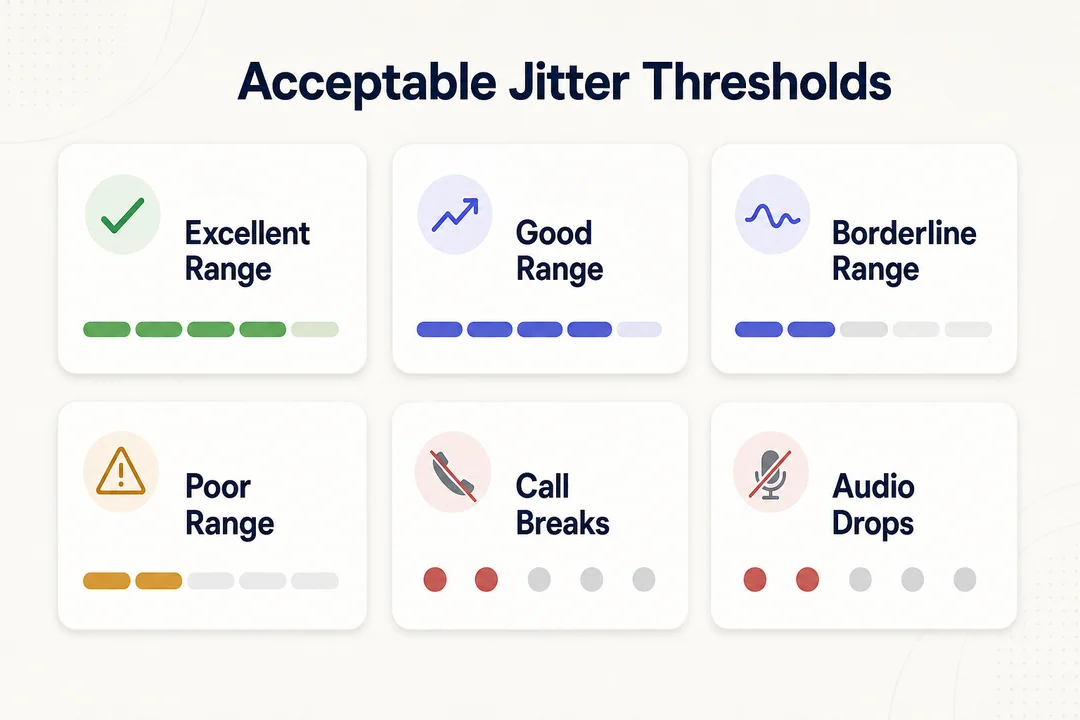
Acceptable jitter for VoIP is generally under 30 ms. For most business environments, anything below that range is usually workable, while under 20 ms is better for more consistent VoIP performance.
Jitter is measured in milliseconds (ms). If the network jitter score rises above normal levels, users are more likely to hear uneven audio, gaps, or distortion during calls. The higher the jitter ms reading, the greater the risk to call quality.
Jitter Threshold Guide
- Under 20 ms = excellent
- 20–30 ms = generally acceptable
- 30–50 ms = likely call quality issues
- Over 50 ms = high risk of poor call quality
Important Context: Jitter Is Only One Metric
Low jitter does not automatically guarantee a good call.
You should still check:
- Latency
- Packet loss
- Overall network stability during active call periods
A connection can show acceptable jitter but still perform poorly if delay is high or packets are being dropped.
What Causes VoIP Jitter?
The most common cause of VoIP jitter is network congestion. But it is not the only one. In real business environments, jitter often comes from a mix of traffic pressure, unstable Wi-Fi, hardware limitations, and external routing conditions.
The fastest way to narrow it down is to check the most common causes first:
- Heavy network traffic
- Weak or unstable Wi-Fi
- Poor QoS settings
- Aging router hardware
- ISP or routing issues outside your office
Network Congestion
Network congestion happens when too much traffic competes for the same connection at the same time.
Common triggers include:
- Video streaming
- Large downloads
- Cloud backups
- Software updates
- Shared office or home internet during peak hours
A support team may notice calls break up in the afternoon when more users are active. That pattern often points to congestion rather than a random voice issue.
Wi-Fi and Local Network Instability
WiFi interference is a frequent source of jitter, especially for remote employees and open office environments.
Typical causes include:
- Weak Wi-Fi signal
- Interference from nearby devices
- Long distance from the router
- Too many connected devices
- Inconsistent signal strength over time
This is why calls on Wi-Fi often sound uneven before they fully fail.
Hardware, QoS, and Configuration Issues
Voice traffic needs consistent handling. Older or poorly configured equipment often struggles to deliver that.
Common issues include:
- Outdated router
- Old switch hardware
- Damaged or poor Ethernet cabling
- No Quality of Service (QoS) rules
- Misconfigured network priorities
Quality of Service QoS helps prioritize voice packets over less urgent traffic. Without it, calls may compete with downloads, backups, or video traffic on the same connection.
When the Problem May Not Be Inside Your Office
Not every jitter problem is local.
In some cases, the issue may involve:
- ISP instability
- Weak routing quality
- Regional path changes across the internet
- Provider-side inconsistency for distributed teams
This becomes more relevant when teams work across multiple regions or when only certain routes show repeated problems.
How to Test or Measure Jitter (Without Going Too Deep)
The easiest way to measure jitter is to run a VoIP speed test or call quality test that reports jitter, latency, and packet loss together. That gives you a practical view of whether the connection is suitable for voice traffic.
Jitter is measured in milliseconds (ms), but the key is not just the number. The timing of the test matters. If the issue appears during busy hours, a clean result from early morning may tell you very little.
Fastest Way: Run a VoIP Quality Test
A VoIP quality test is usually the fastest place to start.
Check these metrics together:
- Jitter
- Latency
- Packet loss
For the most useful result:
- Run the test when call issues are actually happening
- Repeat it during peak traffic windows
- Compare results across locations if remote teams are involved
Basic Manual Check
A basic ping test can serve as a quick sanity check, but it is not enough by itself for full diagnosis.
It may help reveal unstable timing patterns, but it does not replace a voice-focused test that reflects real call conditions.
For Teams Handling High Call Volume
For support, outbound, and hybrid teams, ongoing monitoring is usually more useful than one-off testing.
That helps identify:
- Peak-hour instability
- Repeating route issues
- Patterns affecting only certain teams or locations
If the issue happens regularly, occasional spot checks may miss the real cause.
How to Reduce or Fix Jitter on VoIP Calls
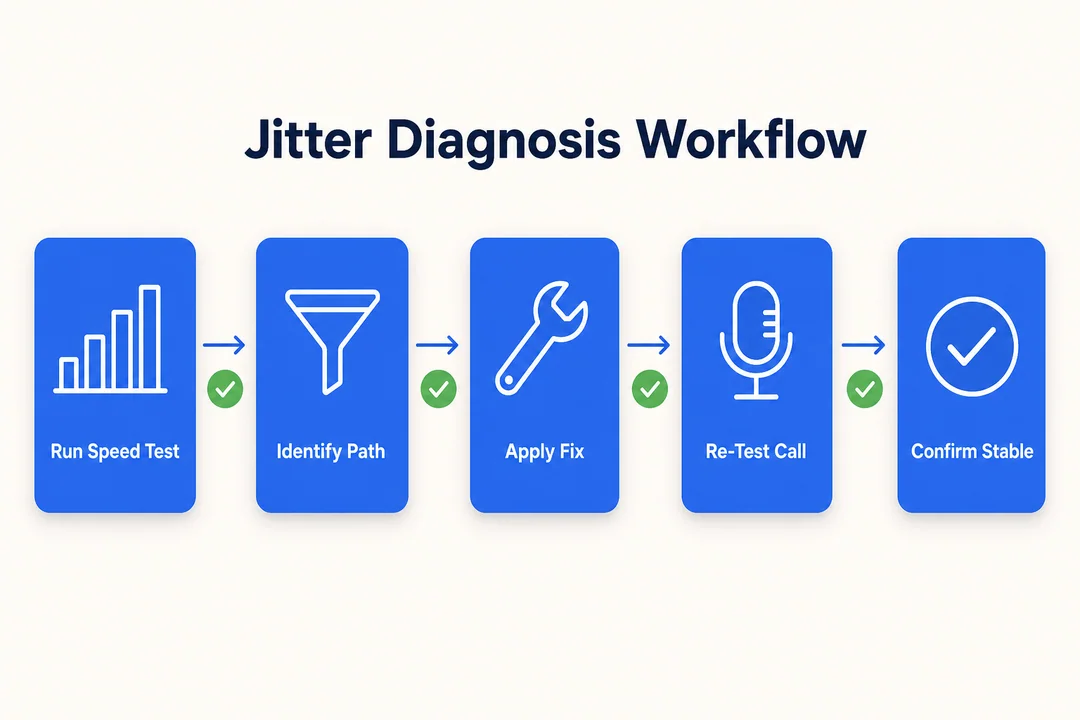
To fix VoIP jitter, start with confirmation, then move from the simplest local improvements to broader network and provider-side checks. The right order matters because many teams waste time changing settings before they verify what the problem actually is.
1. Run a Test When the Problem Happens
First, measure jitter during the actual issue window.
Do not rely only on a general internet speed result. A connection can show decent bandwidth and still suffer from unstable packet timing during live calls.
Check:
- Jitter
- Latency
- Packet loss
If jitter is not elevated, the problem may be elsewhere.
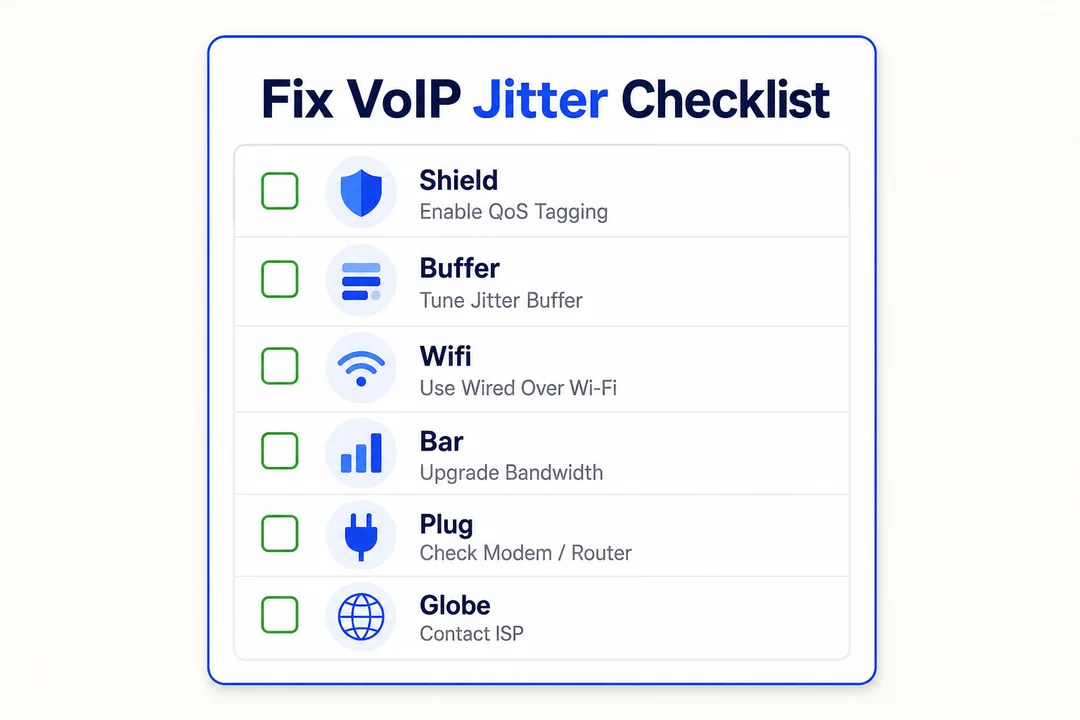
2. Switch From Wi-Fi to Ethernet
If possible, move critical calling devices to a wired connection. Ethernet stability is often the fastest improvement because it reduces wireless interference and signal inconsistency.
This is especially useful for:
- Agents taking continuous calls
- Managers on important client calls
- Remote workers on crowded home Wi-Fi
A simple cable test can quickly show whether Wi-Fi is part of the problem.
3. Reduce Competing Network Traffic
High network traffic can overwhelm shared connections and increase jitter.
During call-heavy periods, reduce or reschedule:
- Large downloads
- Cloud backups
- Streaming traffic
- System updates
- Non-essential sync jobs
This does not always solve the root issue permanently, but it often improves voice stability right away.
4. Enable QoS on the Router
Set up Quality of Service QoS so the network prioritizes voice packets over less time-sensitive traffic.
This is particularly important on:
- Shared office connections
- Home networks with multiple users
- Small business environments using one internet line for everything
QoS can help protect call quality when bandwidth is under pressure.
5. Check Router, Cabling, and Firmware
Review your router hardware and local network basics.
Start with:
- Restarting the router
- Updating firmware
- Replacing damaged cables
- Checking for aging or overloaded equipment
An older router may work well enough for browsing but still struggle with real-time voice traffic.
6. Use a Jitter Buffer If Available
A jitter buffer can smooth out uneven packet arrival by briefly holding and reordering packets before playback.
It can help reduce symptoms, but it is not a root-cause fix.
Use it carefully because too much buffering can introduce extra delay. In other words, it may improve choppy audio while creating more noticeable lag if overused.
7. Review ISP or Provider-Side Stability
If local fixes do not improve results, review provider routing quality and upstream network stability.
This is often necessary when:
- Multiple users report the same issue
- Problems appear at the same time each day
- Distributed teams in different locations experience uneven call quality
Some organizations use a cloud communication platform with stronger routing visibility and real-time troubleshooting workflows to reduce recurring call issues at scale. In environments where routing stability and monitoring matter, platforms such as Flyfone are relevant because they focus on call path reliability, operational visibility, and faster issue response for high-volume teams.
When Jitter Becomes an Operations Problem, Not Just a Network Problem
If call-quality issues happen once, they are usually handled as a local troubleshooting task. If they happen repeatedly, they become an operational problem.
Recurring jitter affects more than single calls. It increases repeat handling, disrupts agent workflows, and creates a hidden support burden for internal IT and operations teams. Over time, weak call quality monitoring makes it harder to separate local issues from broader routing stability problems.
This matters most for:
- Support teams with constant call volume
- Sales teams running outbound campaigns
- Distributed teams working across regions
- Organizations dependent on stable business communication infrastructure
At that point, one-off testing is not enough. Teams need recurring visibility into performance patterns, route behavior, and issue timing across the broader cloud communication platform stack.
Conclusion
Jitter VoIP refers to uneven packet timing during a call, and that timing problem can create choppy, robotic, or delayed audio even when internet speed appears fine. In most cases, acceptable jitter for VoIP is under 30 ms, while under 20 ms is a stronger target for consistent business calling.
If you need to fix VoIP jitter, follow the practical order: test when the issue happens, move critical users to Ethernet, reduce competing traffic, enable QoS, check local hardware, and review provider-side conditions if problems persist. For a useful next step, review your internal call quality checklist or build a simple recurring test routine so issues are measured during real problem windows, not only after the fact. If you want a structured fit assessment for your call quality monitoring workflow, book a tailored walkthrough with the Flyfone team.
Frequently Asked Questions
What is jitter in VoIP?
Jitter in VoIP is the variation in delay between data packets as they travel across the network. When the packets do not arrive at an even rhythm, the audio on the call becomes uneven and can sound distorted or clipped.
What level of jitter is acceptable for VoIP?
The ideal jitter level for VoIP is under 20 ms. Under 30 ms is generally acceptable in most business environments. Once the reading climbs above 30 to 50 ms, call quality starts to degrade noticeably.
How is jitter different from latency and packet loss?
Jitter is the instability in packet arrival timing. Latency is the total transmission delay end to end. Packet loss happens when some packets never reach the destination. All three hurt call quality, but they have different technical causes.
How can you measure jitter on your network?
Run an online VoIP quality test that reports jitter, latency, and packet loss together. Run the test when you are actively experiencing the issue so the result reflects real call conditions.
Why is my VoIP call choppy even though my internet speed is fast?
High bandwidth does not guarantee stable timing. Choppy audio is often caused by network congestion during peak hours, Wi-Fi interference, weak QoS configuration, or old hardware that does not prioritize voice traffic.
How do you fix jitter on VoIP calls?
- Switch from Wi-Fi to a stable Ethernet connection.
- Configure QoS on the router so voice traffic is prioritized.
- Limit bandwidth-heavy tasks such as large downloads or video streaming during peak hours.
- Check the hardware and update router firmware to keep the network in good condition.
More in Operations & CX Optimization
View all →
Customer Experience Transformation: Framework and Steps
A telecom customer calls support about a billing error. They explain the problem to the IVR system. Then to the first agent. Then get transferred and explain again. Then escalated—and explain a third time. Forty minutes later, they're exhausted and the problem still isn't solved. This is what broken customer experience looks like. And it's costing you customers. Customer experience…


Web Caller Meaning: JavaScript caller, Calling Tools or Portals
“Web caller” is one of those phrases where the search results and the searcher are frequently talking about different things. Three unrelated audiences use it: developers hitting an error on the legacy JavaScript caller property, buyers evaluating browser-based calling software, and people trying to reach a specific portal or training page whose exact name they cannot recall. That fragmentation is…

Customer Experience Strategy: How to Build One That Works
Customer experience is getting worse, not better. Forrester's 2025 Global CX Index found that 21% of brands declined in CX quality while only 6% improved — and in the US, 25% declined against 7% that improved, the second consecutive year of that pattern. Most of those brands were not neglecting customer experience. They were working on it without a strategy…



 English
  Russian
  Chinese